 MultiTab Print | Print All Tabs
How to print all tabs in Firefox
Install the free MultiTab Print | Print All Tabs add-on from Firefox Add-ons, select the tabs you want, and print them all at once: one combined preview in tab order, then one print dialog or one PDF. It runs locally, with no account.
Install MultiTab Print in Firefox
Print several Firefox tabs in five steps
-
Install from Firefox Add-ons
Open the MultiTab Print listing on Firefox Add-ons, click Add to Firefox and confirm. The MultiTab Print icon appears in your toolbar.
-
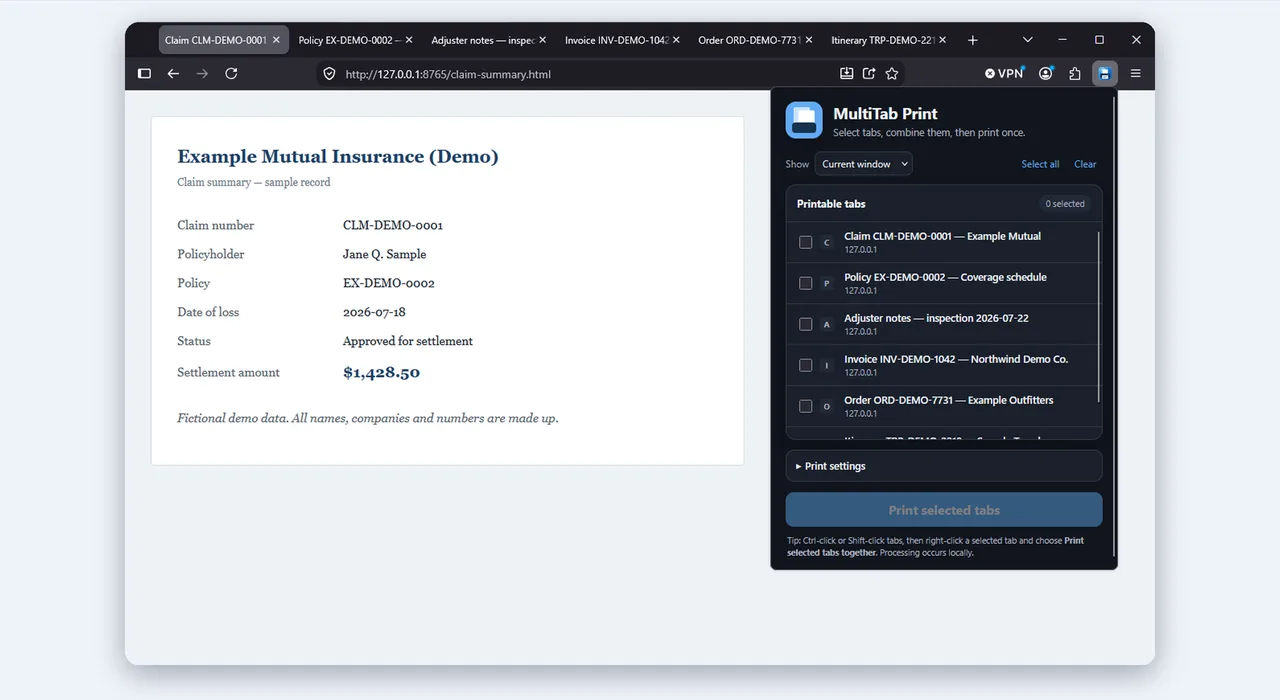
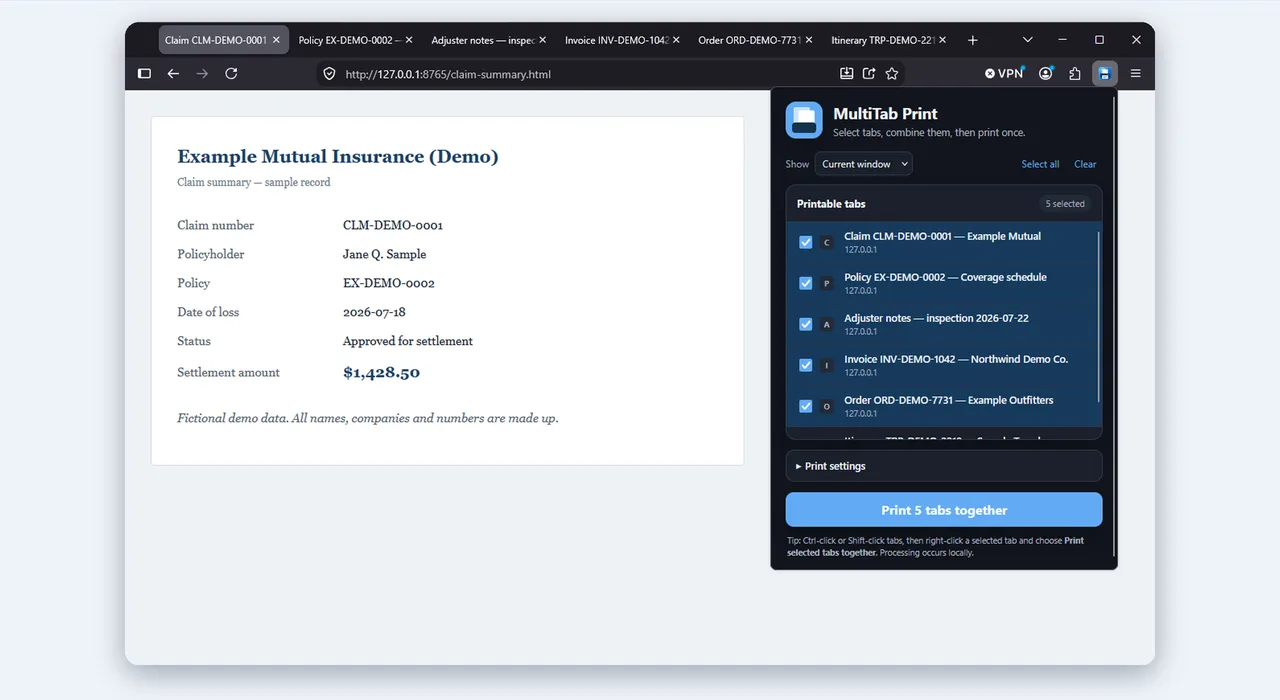
Select the tabs you want
Open the popup and tick each tab, or select tabs in the tab strip with Ctrl-click or Shift-click first.
-
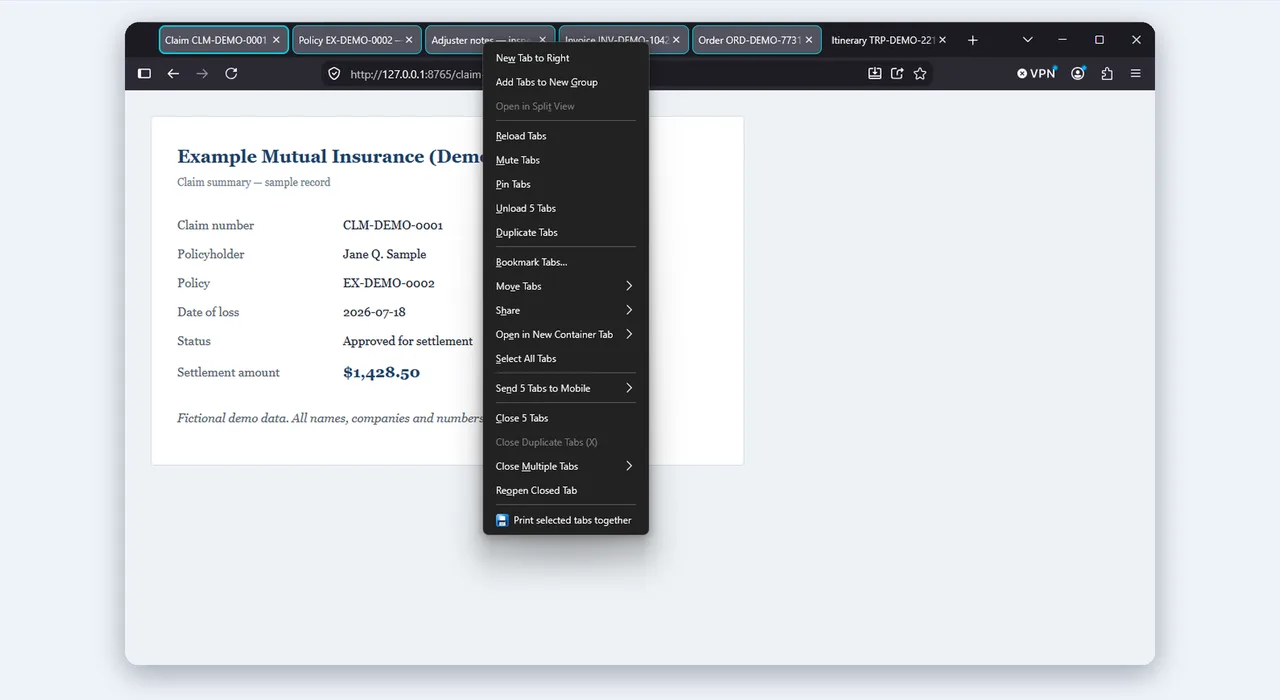
Start the job from the tab menu
Right-click one of the selected tabs and choose Print Selected Tabs. You can also press Alt+Shift+M or click the button in the popup.
-
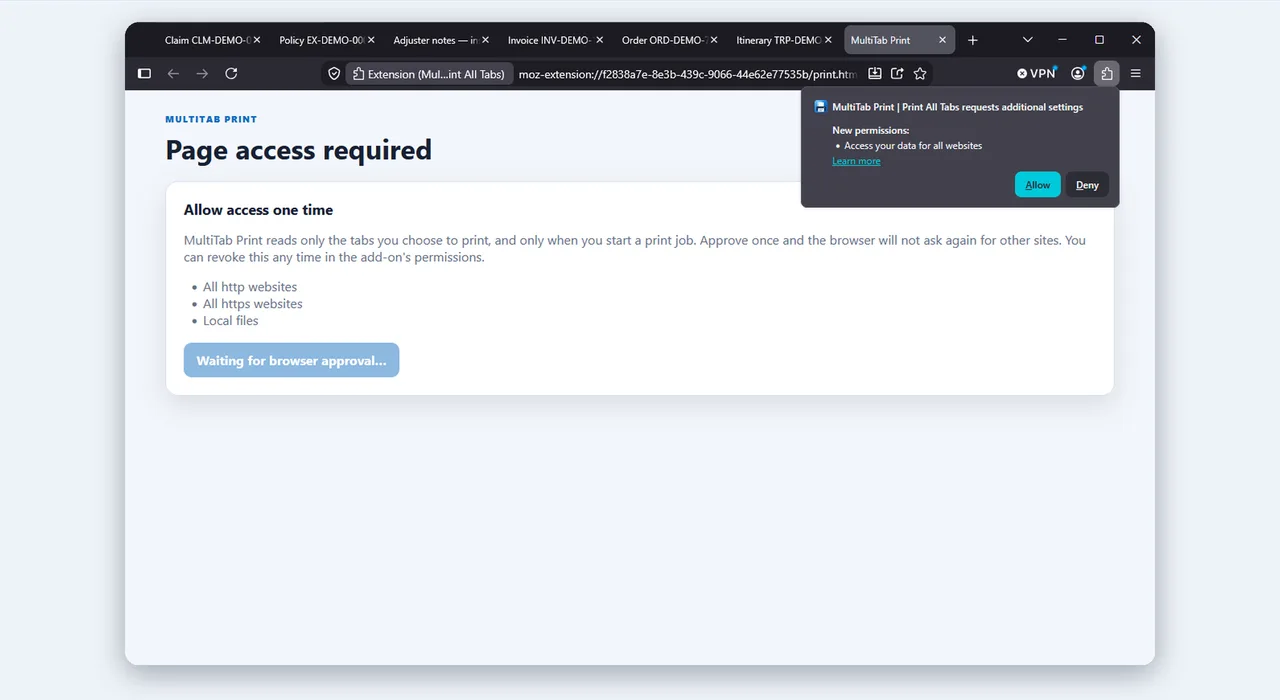
Approve page access, once
The first time you print, Firefox asks for permission. Click Allow; it asks only once.
-
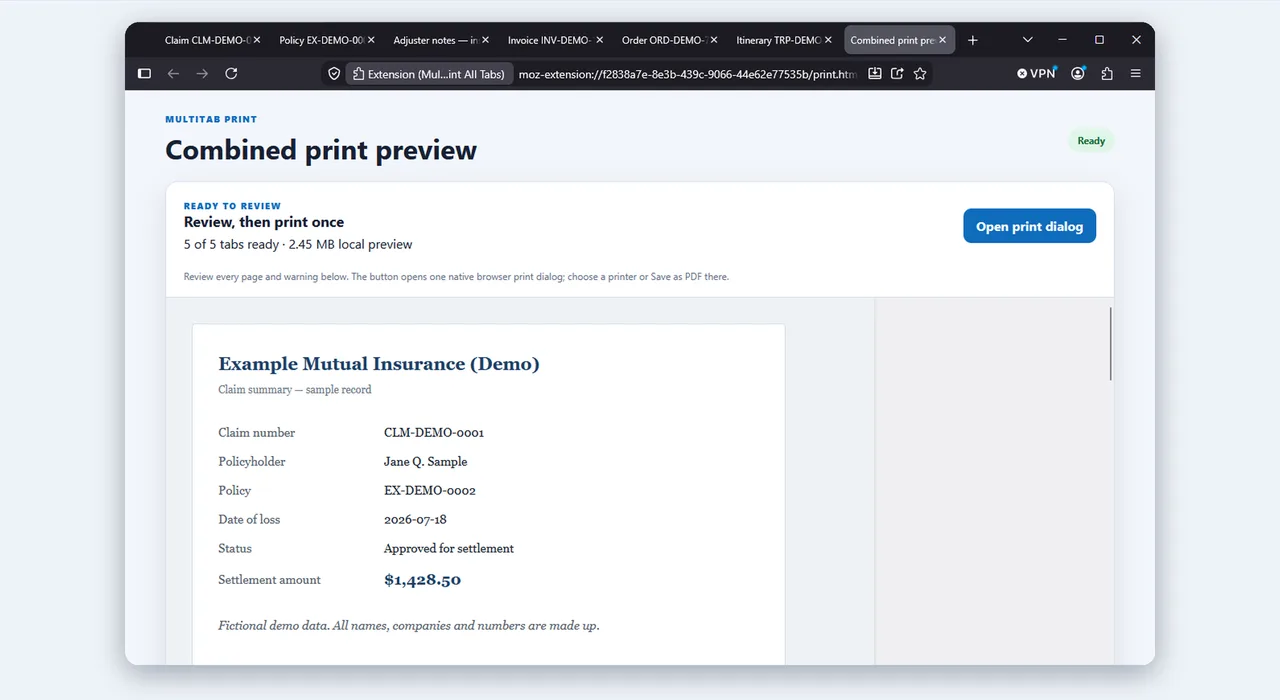
Review, then print or save as PDF
The combined preview shows every tab in tab order, with a tab list beside the pages. Then print once, or choose Save to PDF for one searchable file.
Firefox-specific notes
PDFs saved on your computer
Firefox does not let any extension open files on your computer. A PDF opened from your computer (a file: tab, such as a downloaded tax form) therefore needs your help. The print page lists those files; Choose files… opens the file picker, and each file prints in its own tab's place. Nothing is uploaded, and Skip leaves a file out with a note in the tab list.
Limits
Each job holds up to 50 tabs and 300 pages. Some pages, such as browser settings pages, can't always be reproduced; the preview's tab list marks them.
Change the shortcut
Alt+Shift+M prints the selected tabs, or every tab in the window when only one is selected. To change it, open about:addons, click the gear icon and choose Manage Extension Shortcuts.
Firefox questions
Why can't Firefox print all tabs by itself?
Firefox's print command works on the tab you are viewing and has no option to select several tabs for one job.
Will Firefox ask for permission?
Yes, once. MultiTab Print asks for page access only when you print, and uses it only for the tabs you chose. After you approve, the browser does not ask again.
Can I print PDFs saved on my computer in Firefox?
Yes. From version 1.3.2, the print page asks you to choose those files with Choose files…. Nothing is uploaded. Skip leaves a file out, and the tab list notes it.
Does MultiTab Print upload my pages?
No. Pages are processed in your browser. There is no account, analytics, advertising or developer server.
Also see printing all tabs in Chrome and options compared.
Print every Firefox tab in one go
Free, local and private. Install MultiTab Print | Print All Tabs from Firefox Add-ons and print your next batch of tabs in one job.