 MultiTab Print | Print All Tabs
How to print all tabs in Chrome
Install the free MultiTab Print | Print All Tabs extension from the Chrome Web Store, select the tabs you want, and print them all at once: one combined preview in tab order, then one print dialog or one PDF. It runs locally, with no account.
Install MultiTab Print in Chrome
Print selected tabs in Chrome
-
Install from the Chrome Web Store
Click Add to Chrome on the MultiTab Print | Print All Tabs listing. It is free and needs no account. Pin it from the puzzle-piece menu to keep its icon visible.
-
Select the tabs you want
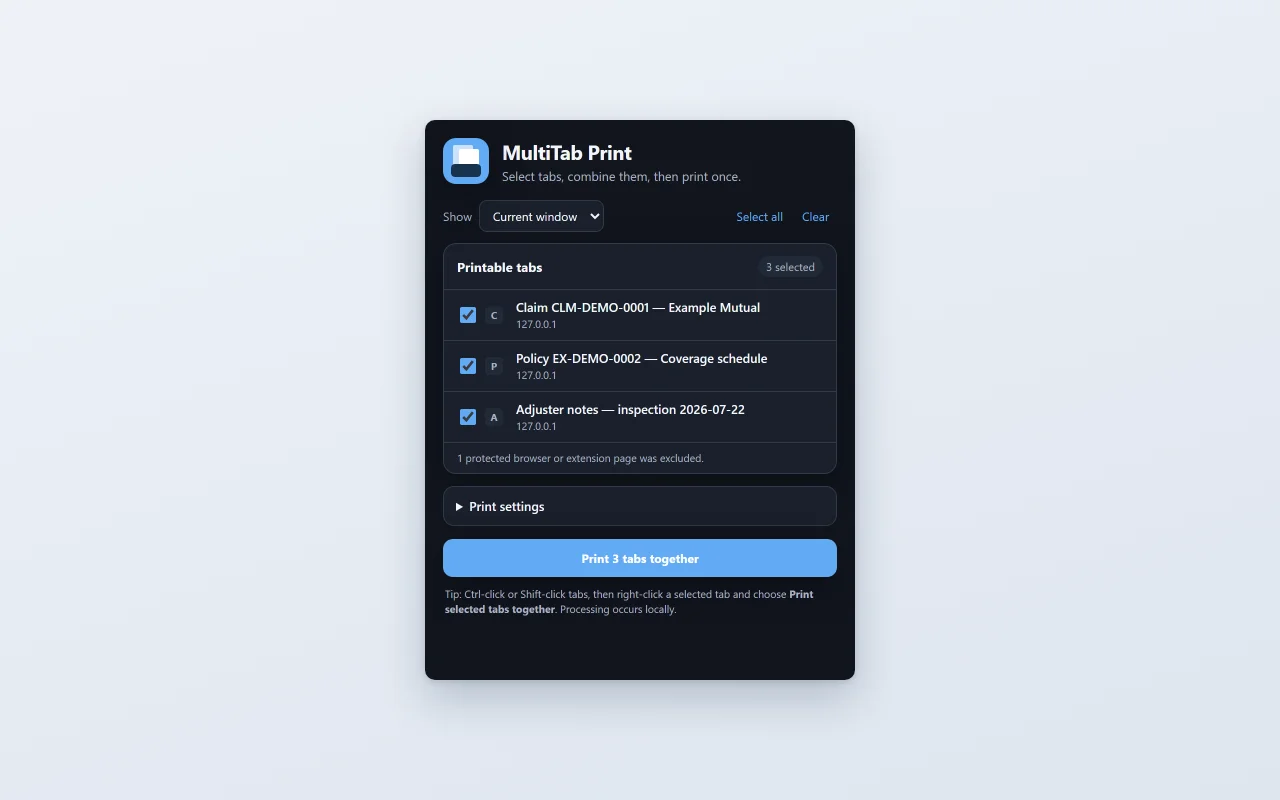
Ctrl-click (Cmd-click on a Mac) or Shift-click tabs in the tab strip, or tick them in the popup. Its Show menu switches between Current window and All windows. One job holds up to 50 tabs.
-
Start the print job
Right-click a selected tab and choose Print Selected Tabs. If Chrome's tab menu doesn't show it, use the popup's print button or press Alt+Shift+M.
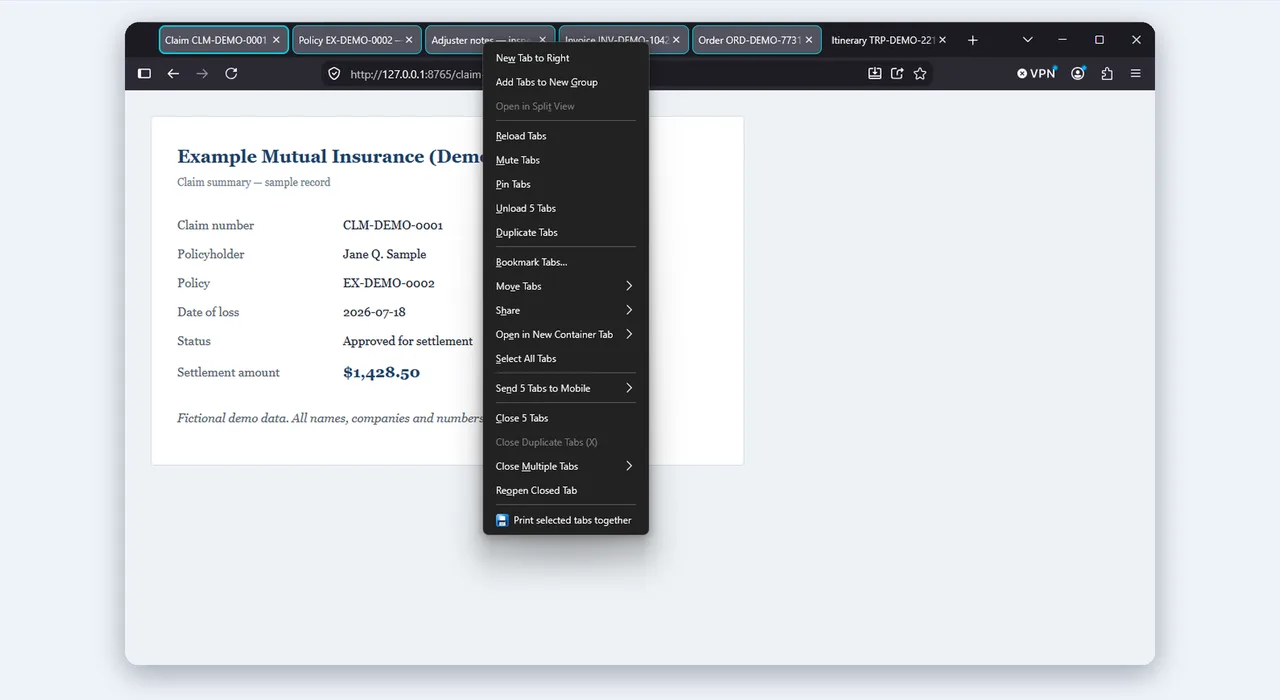
Screenshot from Firefox. Chrome's tab menu may look different.
-
Allow access, once
The first time you print, approve Chrome's access prompt once. It asks only when you print, covers only the tabs you chose, and nothing is uploaded.
-
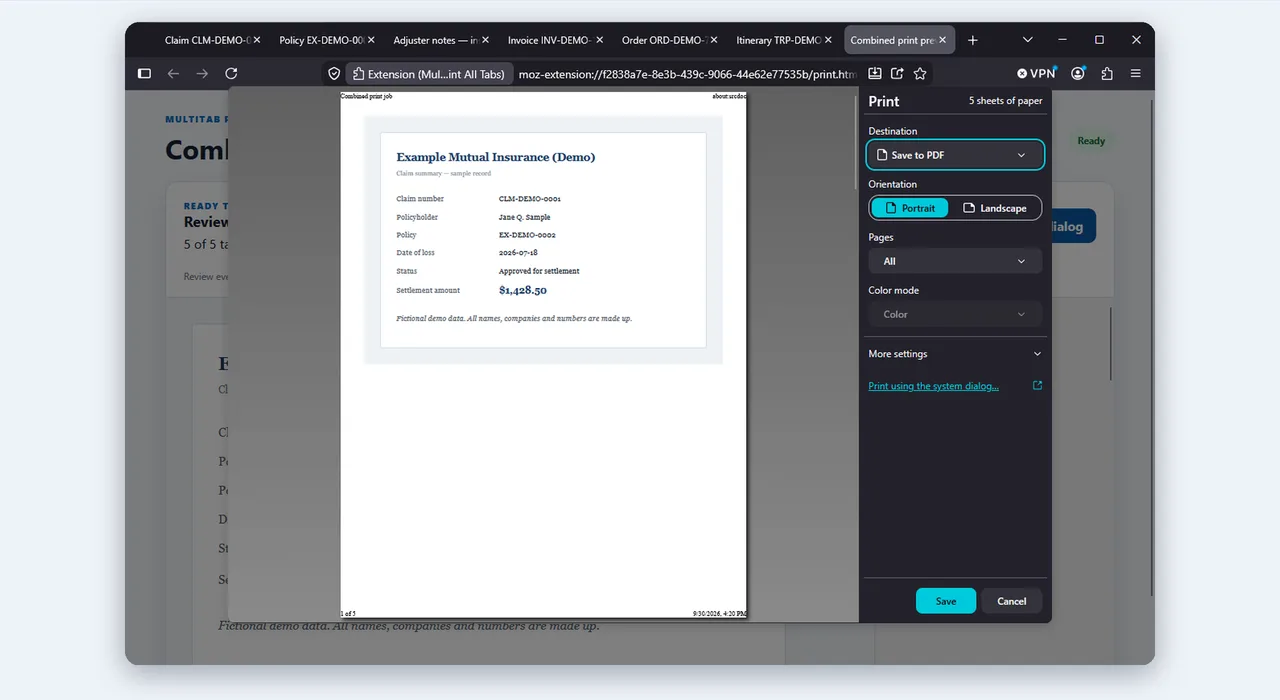
Review, then print or Save as PDF
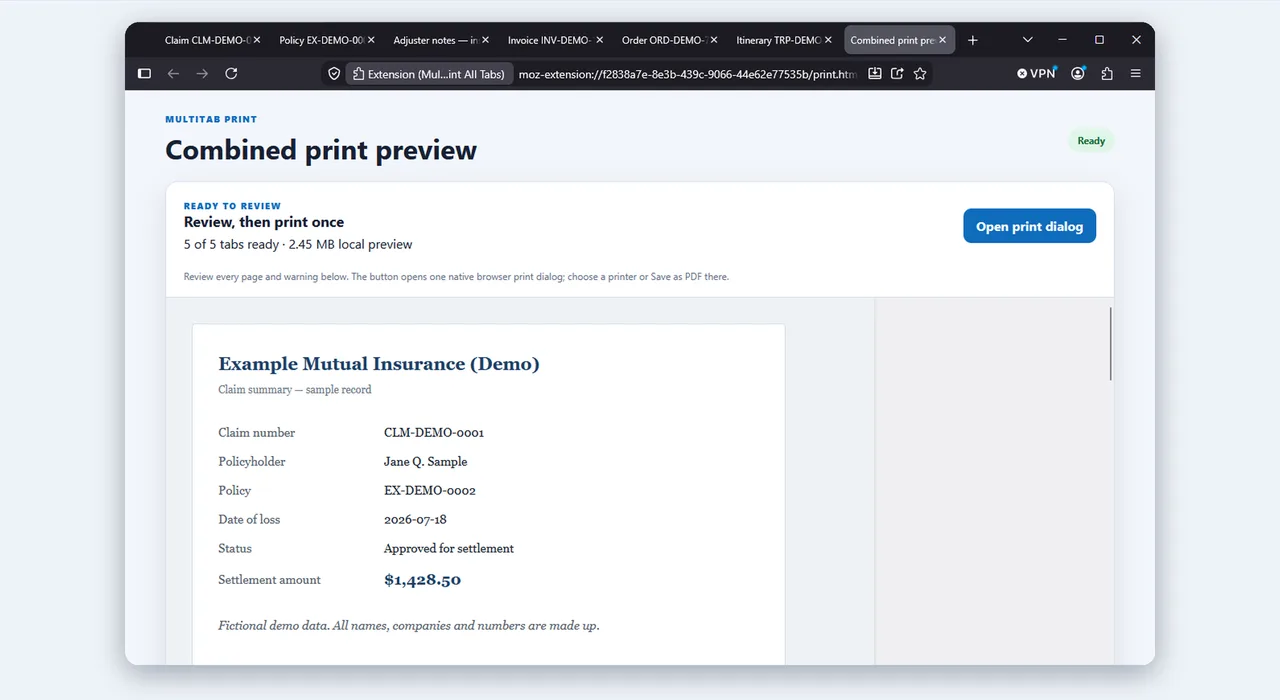
The combined preview lists each tab in order, with its page count, and flags anything that could not be captured. Then one print dialog opens for the whole bundle: print, or choose Save as PDF.
Chrome tips
- Local PDF files. PDFs opened from your computer (
file://addresses) need Allow access to file URLs, switched on atchrome://extensionsunder the extension's Details. Web PDFs don't. - Shortcut. Alt+Shift+M prints the selected tabs, or every printable tab when only one is selected. Change the key at
chrome://extensions/shortcuts. - Limits. Up to 50 tabs, 300 pages and 50 MB per PDF in each job. Browser settings and extension pages can't always be reproduced.
Brave, Opera, Vivaldi and Edge
Brave, Opera and Vivaldi run Chrome extensions, so the same listing works there. Edge users can install from the Chrome Web Store too, after allowing extensions from other stores. See printing all tabs in Edge or how the options compare.
Chrome questions
Why does Ctrl+P print only one tab in Chrome?
Ctrl+P prints only the tab you are viewing. MultiTab Print collects the tabs you select and prints them in one job.
I don't see the command in Chrome's tab menu. What now?
Select the tabs, open MultiTab Print from the toolbar and press the print button.
Why does Chrome ask for site access?
To read the tabs you chose. It asks only when you print, and nothing is uploaded.
How do I print a PDF saved on my computer in Chrome?
Turn on Allow access to file URLs at chrome://extensions, under the extension's Details. Web PDFs don't need it.
Print every Chrome tab in one go
Free, local and private. Install MultiTab Print | Print All Tabs and your next twenty tabs become one print job.