 MultiTab Print | Print All Tabs
How to print all tabs in Microsoft Edge
Install the free MultiTab Print | Print All Tabs extension from the Chrome Web Store, select the tabs you want, and print them all at once: one combined preview in tab order, then one print dialog or one PDF. It runs locally, with no account.
Last updated 2026-10-26 · Version 1.3.2
Install MultiTab Print in Edge
Install MultiTab Print in Edge
Edge installs extensions from the Chrome Web Store once you allow it. MultiTab Print is not yet listed on Edge Add-ons, so this is the route for now.
- Open the MultiTab Print page in the Chrome Web Store in Edge.
- Click Allow extensions from other stores in the banner, then click Allow.
- Click Add to Chrome (some Edge versions show Get), then click Add extension.
Print all your tabs in one job
The screenshots were captured in Firefox. Edge looks the same apart from the browser frame and its own menus.
-
Pin MultiTab Print to the toolbar
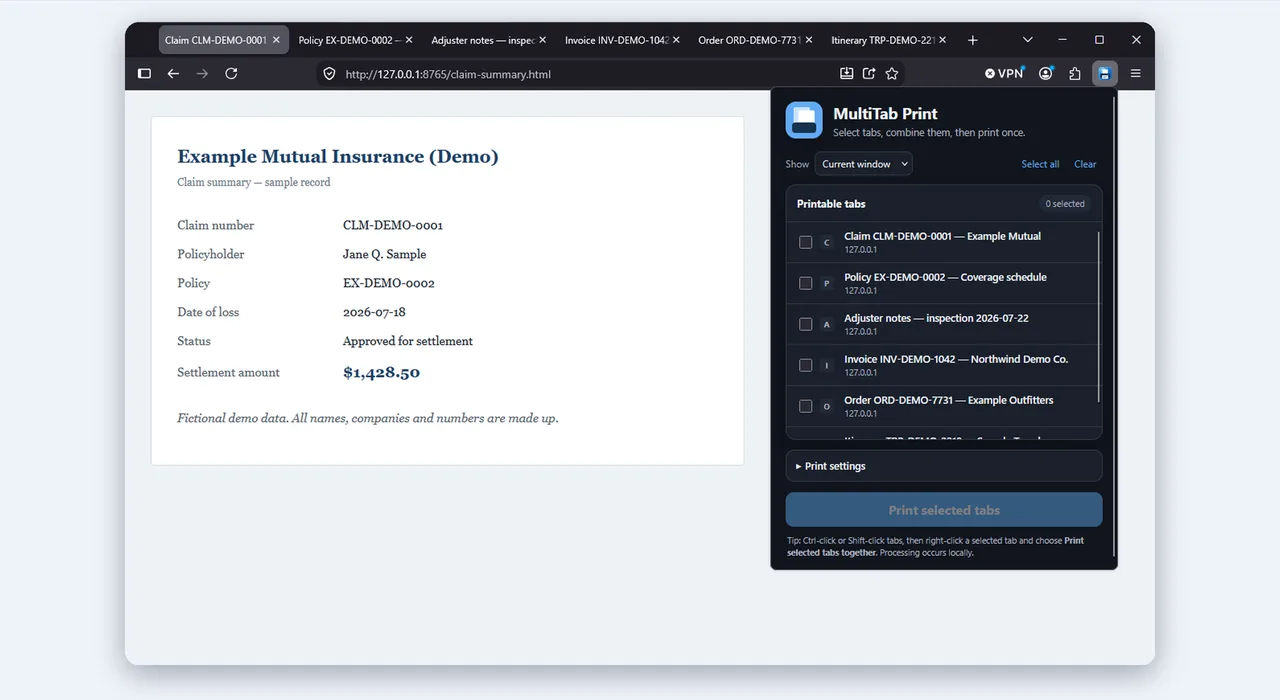
Click the Extensions puzzle icon in Edge's toolbar, then pin MultiTab Print so its icon stays visible. Open the tabs you want to print in the same window.
-
Select the tabs
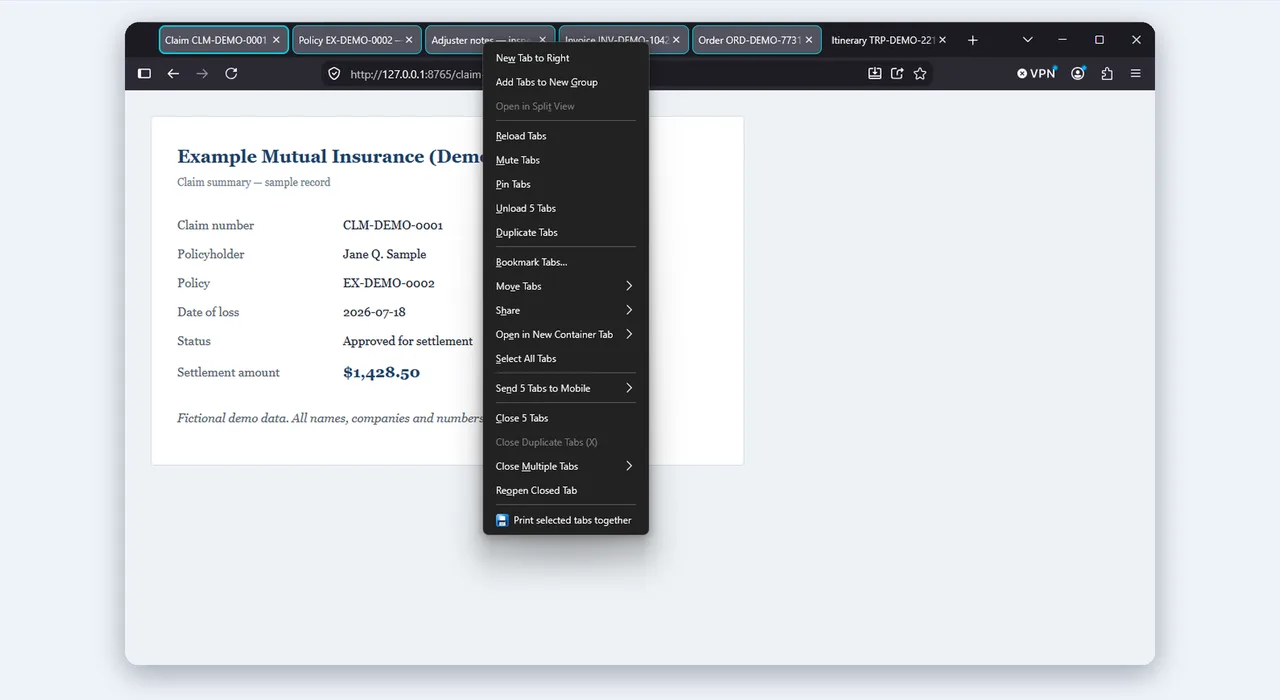
Ctrl+click or Shift+click tabs in the tab strip to select them. Vertical tabs work the same way. Then right-click a selected tab and choose Print Selected Tabs. Alt+Shift+M does the same.
-
Allow access once
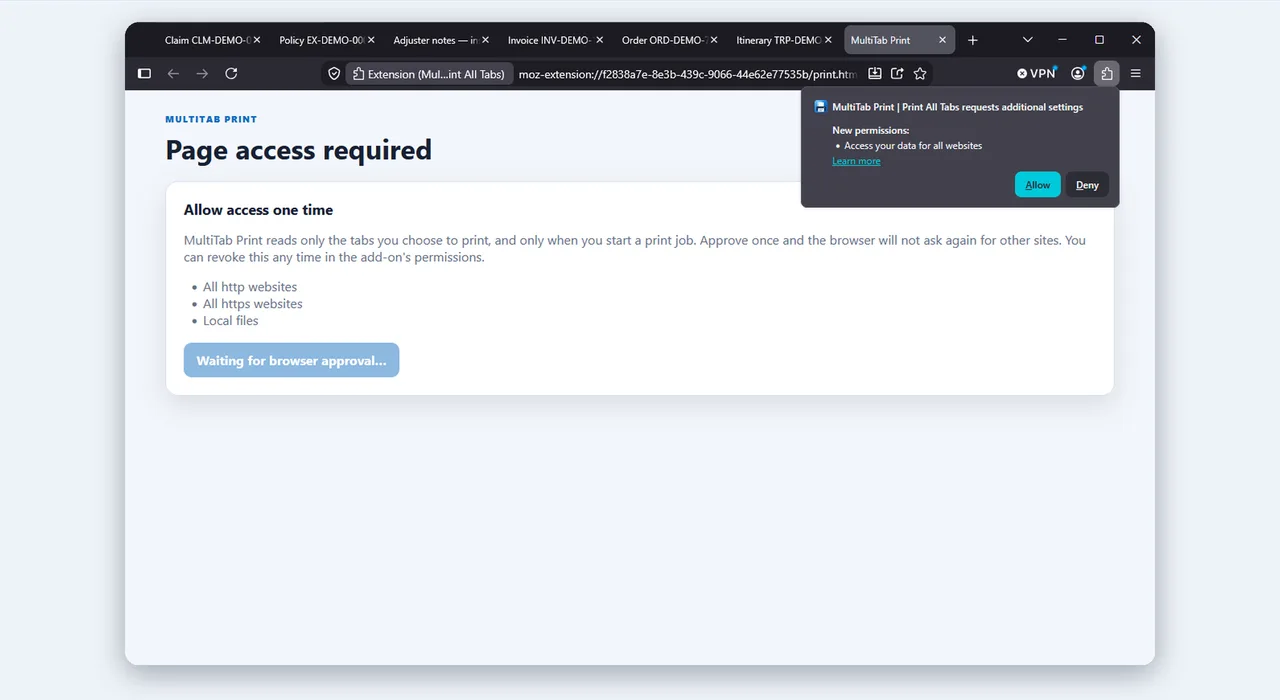
The first time you print, the browser asks for permission to read the tabs you chose. It asks only when you print, and only for those tabs. Nothing is uploaded.
-
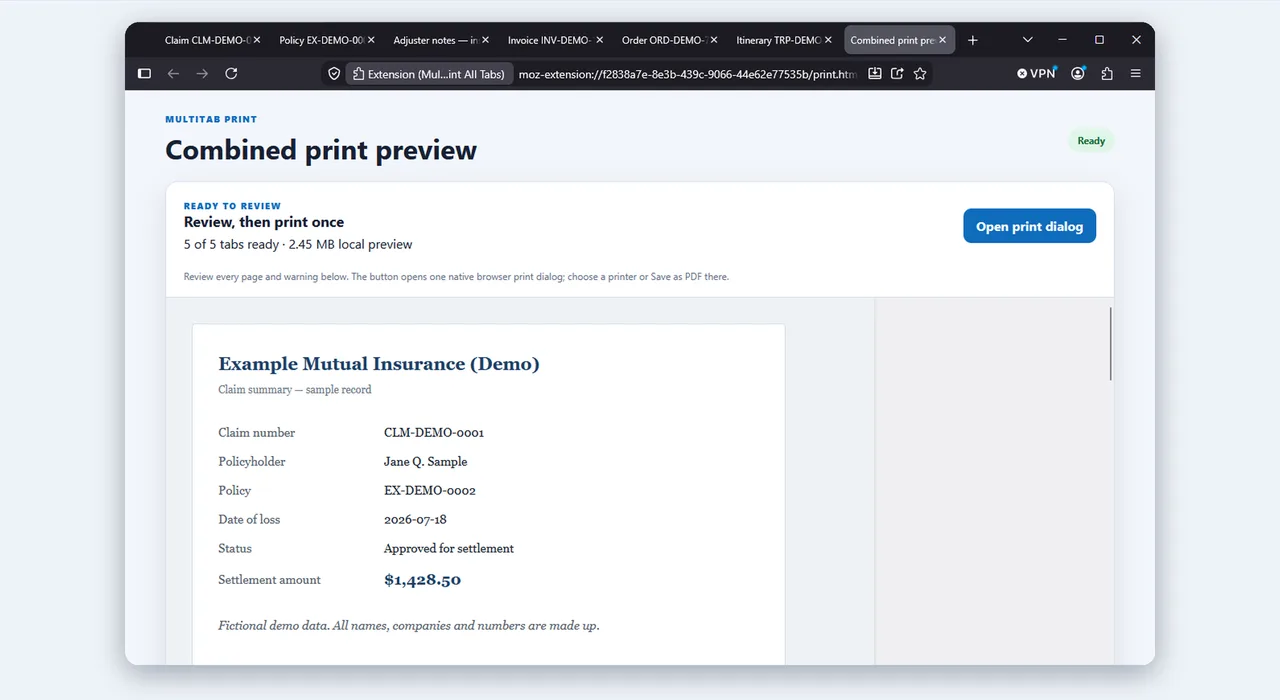
Review the combined preview
Every tab appears in tab order. A tab list beside the pages shows each tab's page count and marks anything that could not be captured in full.
-
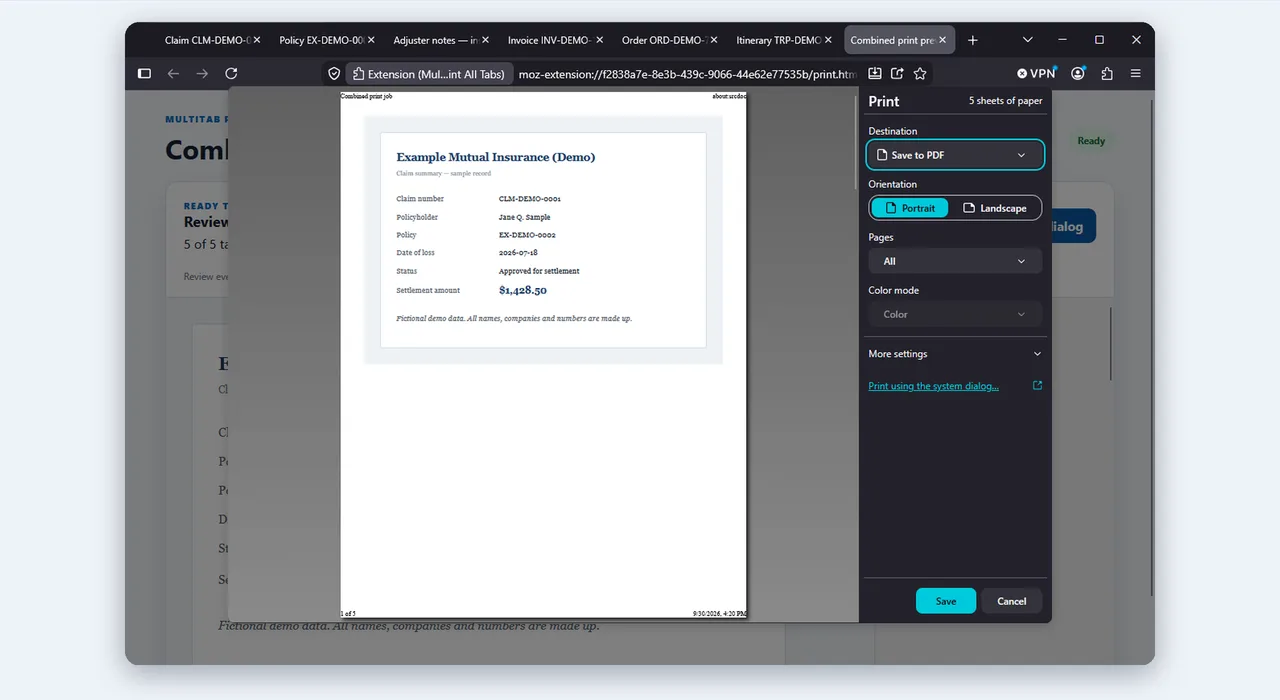
Print, or Save as PDF
One print dialog opens for the whole bundle. Choose a printer, or choose Save as PDF to get one file with selectable, searchable text.
PDFs saved on your computer
PDF tabs from the web print with no extra setup. A PDF opened from your computer has a file:// address, and Edge keeps extensions out of local files until you allow it. To print those, open edge://extensions, open the details for MultiTab Print, and turn on Allow access to file URLs.
Limits: 50 MB per PDF, 300 pages and 50 tabs per job. Check the tab list before you print.
Edge questions
Does MultiTab Print work in Microsoft Edge?
Yes. Edge runs Chrome extensions, so you install MultiTab Print from the Chrome Web Store. It is not yet listed on Edge Add-ons.
Why does Edge block the Chrome Web Store?
Edge installs extensions from other stores only after you allow it. On the store page, click Allow extensions from other stores in the banner, then click Allow.
What is the keyboard shortcut in Edge?
Alt+Shift+M prints the selected tabs. You can change it on Edge's extension shortcuts page.
Can I print PDFs saved on my computer in Edge?
Yes, once you turn on Allow access to file URLs for MultiTab Print at edge://extensions. Web PDFs print without that setting. Nothing is uploaded.
Other browsers
Using Chrome? Read how to print all tabs in Chrome. Want to see how the options compare? Visit the comparison page.
Print every selected tab in one go
Free, local and private. Install MultiTab Print | Print All Tabs from the Chrome Web Store and your next batch of tabs becomes one print job.